
Libris Translate 0.28.0 · User guide
Category: Translate and review
Analysis and translation
Libris Translate reads the whole book first, then translates with what it learned.
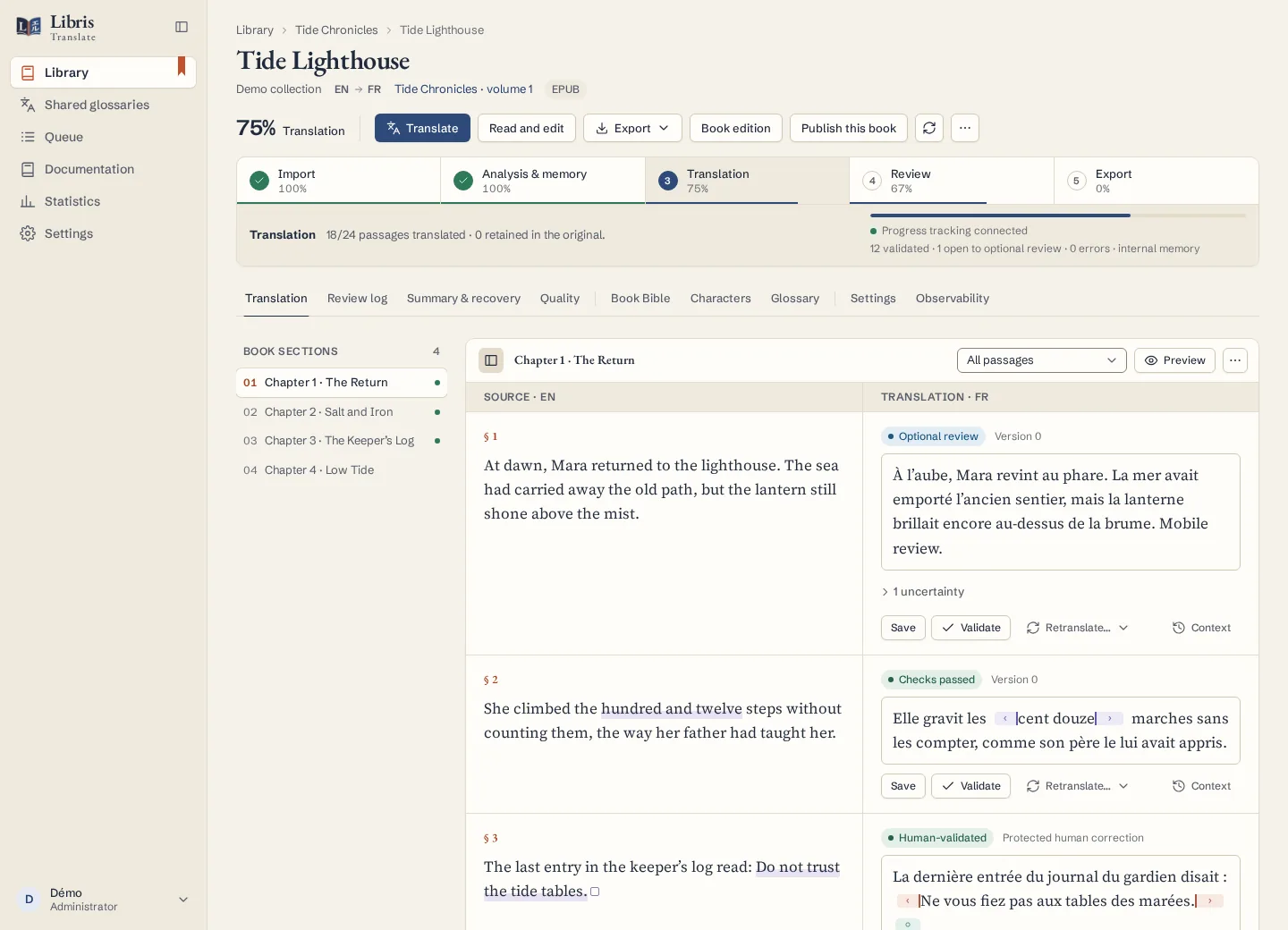
Steps
- Open the book’s Settings tab. Choose the source and target languages, the provider and the quality: “Fast”, “Normal · verification”, “High quality · critique & revision” or “Maximum · polishing”. Put what the style sheet does not say into “Global instructions”, then click “Save settings”.
- Click “Analyze book”. Libris Translate reads every passage and builds the Book Bible, the character sheets and the glossary proposals, which you find in the Book Bible, Characters and Glossary tabs. Check the names that matter before going further.
- Click “Translate”. The confirmation shows an estimate for the step. Follow the stages in the progress bar: “Pause” stops the job, and “Resume” picks it up where it stopped, without importing the book again.
- In the Review log tab, “Start AI review” has the book’s provider re-examine the flagged passages. In the Quality tab, “Global consistency check” looks for contradictions across the whole book; click “Mark as resolved” on each point once you have dealt with it.
What to know
A volume is translated only once its analysis is complete, so the very first passage already sees the full glossary and character list. A passage holds up to 3,500 characters by default. Retranslating a section keeps human corrections and offers the new results in the history. A provider refusal stays visible and never counts as a translation. The quality level changes the work asked of the model, from a simple check to critique, revision and polishing; it does not guarantee a literary result.
Fictional example
Before translating a fictional novel, add “Keep Mara’s dialogue short and dry” to the global instructions and lock “Keeper” → “gardien” in the glossary, then translate one chapter to check both.