
Libris Translate 0.28.0 · User guide
Category: Manage Libris Translate
Email delivery
Set up the mail server, then see what actually left.
Steps
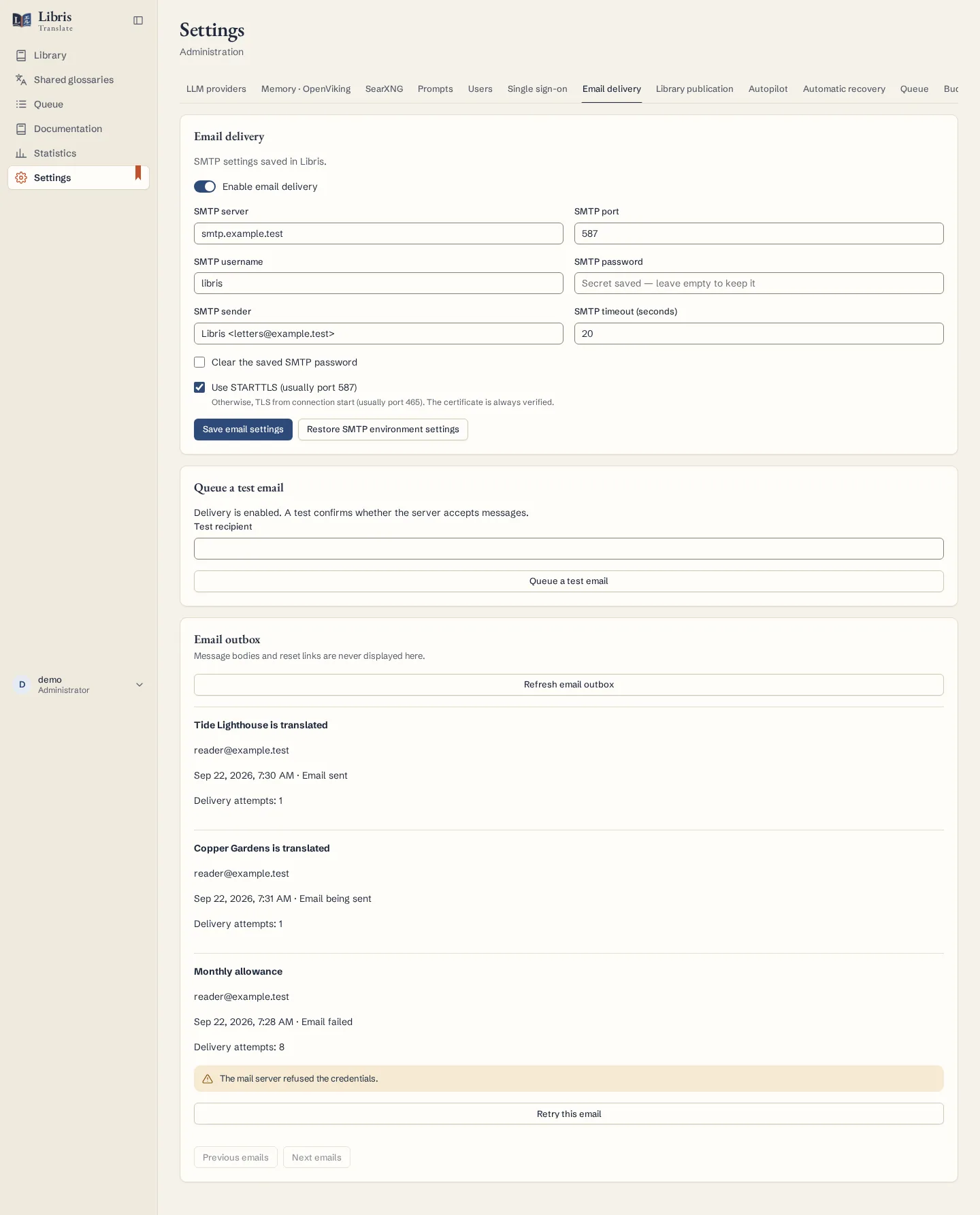
- Under Settings › Email delivery, fill in the “SMTP server”, “SMTP port”, “SMTP sender” and, if needed, the username and password, then tick “Enable email delivery”. Tick “Use STARTTLS (usually port 587)”; otherwise TLS starts with the connection, usually on port 465.
- Click “Save email settings” before testing. The saved password is never shown again: leave the field empty to keep it, or tick “Clear the saved SMTP password”.
- Enter a “Test recipient” and click “Queue a test email”. Success here means queued, not received: refresh the “Email outbox”, where a message is marked sent once the server has accepted it.
- A failed message says why: credentials, sender or recipient refused, connection or certificate. Once the cause is fixed, “Retry this email” queues it again.
What to know
The server certificate is always verified, and there is no switch to turn that off. The outbox never shows the body of a message or a reset link; for a password reset, ask for a new link rather than resending the old one. Settings saved here override the SMTP environment variables, and “Restore SMTP environment settings” removes them, password included, without a restart. Without a mail server, Libris Translate sends nothing at all.
Fictional example
Fill in a fictional mail server, queue a test to your own address, then refresh the outbox until the message shows as sent.