
Libris Translate 0.28.0 · User guide
Export the translated book
Pick the file that suits what comes next: reading, proofreading or editing.
On video
What the video shows
- Download the EPUB, on the book page.
- The translated EPUB, checked by EPUBCheck without errors, open on an e-reader at “The Secret of Master Cornille”.
Steps
- Check the Summary & recovery tab, then open “Export” on the book’s page. The menu offers “Translated EPUB”, “Bilingual EPUB (proofreading)”, text, Markdown, “Word (tracked corrections, doubts as comments)”, “Book Bible JSON” and “Complete project (.zip)”.
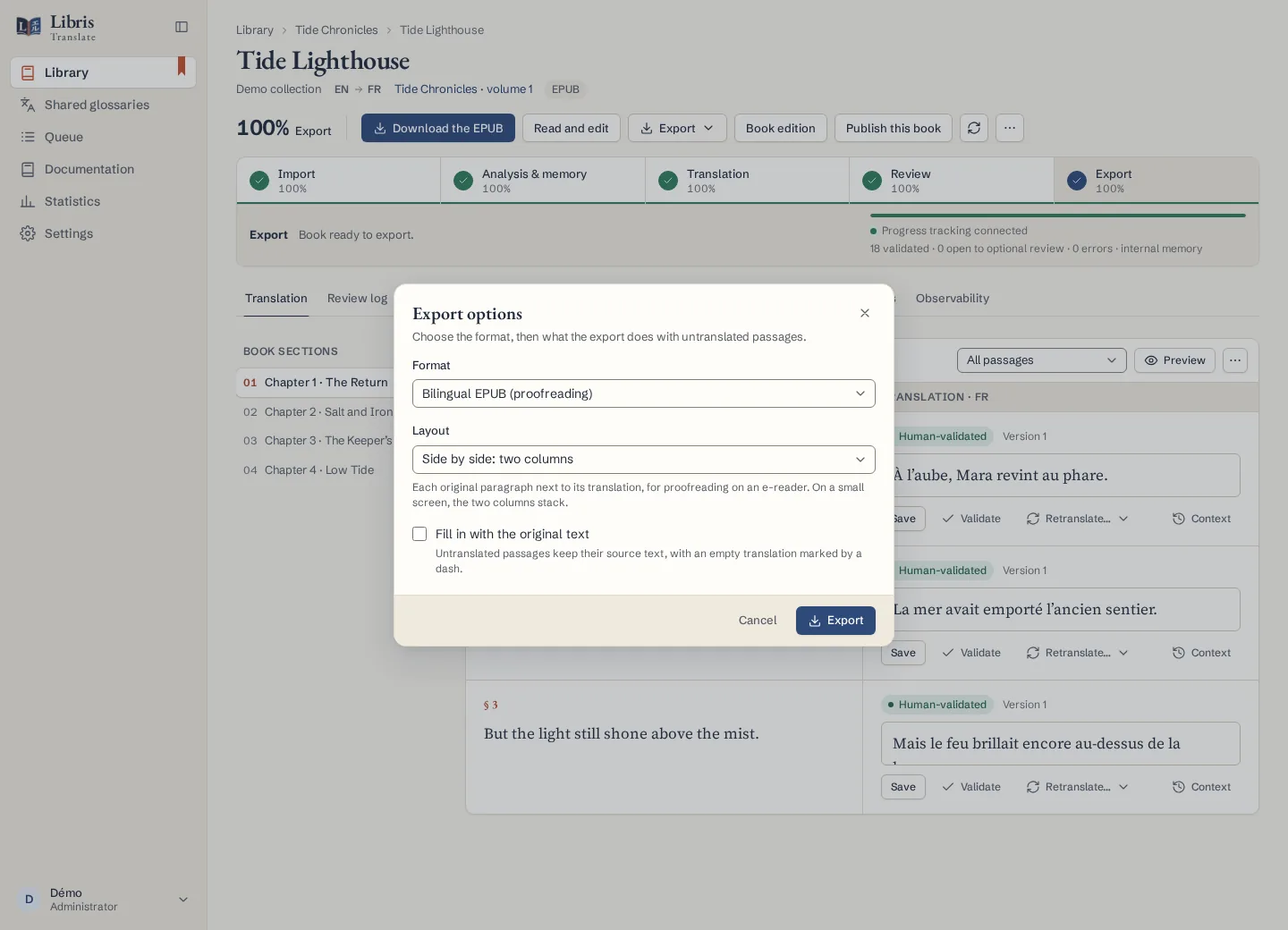
- For proofreading, choose the bilingual EPUB, then its “Layout” under “Export options…”: “Interleaved: the original, then its translation” or “Side by side: two columns”. The Word file shows your corrections as tracked changes and the model’s doubts as comments.
- For a webnovel, “Chapters (.zip, one file per chapter)” gives one file per chapter; “Add the consolidated text to the ZIP” adds a single file with every chapter. “From chapter” and “To chapter” export a range, and “Join the parts of a chapter” merges a chapter published in several parts.
- If some passages are still untranslated, choose “Partial EPUB · originals retained”, or tick “Fill in with the original text” in the options, and open the “Coverage report” to see what remains.
What to know
A full EPUB export is refused while passages have no translation; a passage whose original you chose to keep counts as decided. Every EPUB is checked with EPUBCheck on the way out. The full EPUB keeps the original’s layout, styles and images, whereas a chapter range is a new book written by Libris Translate, without them. In the bilingual EPUB, an untranslated passage keeps its source text with an empty translation marked by a dash.
Fictional example
Export chapters 2 to 4 of a fictional webnovel as a side-by-side bilingual EPUB for a proofreader, then the whole book as a translated EPUB once they are done.