
Libris Translate 0.28.0 · User guide
Category: Translate and review
Read and correct a chapter
Read a translated chapter full page and fix a paragraph without losing your place.
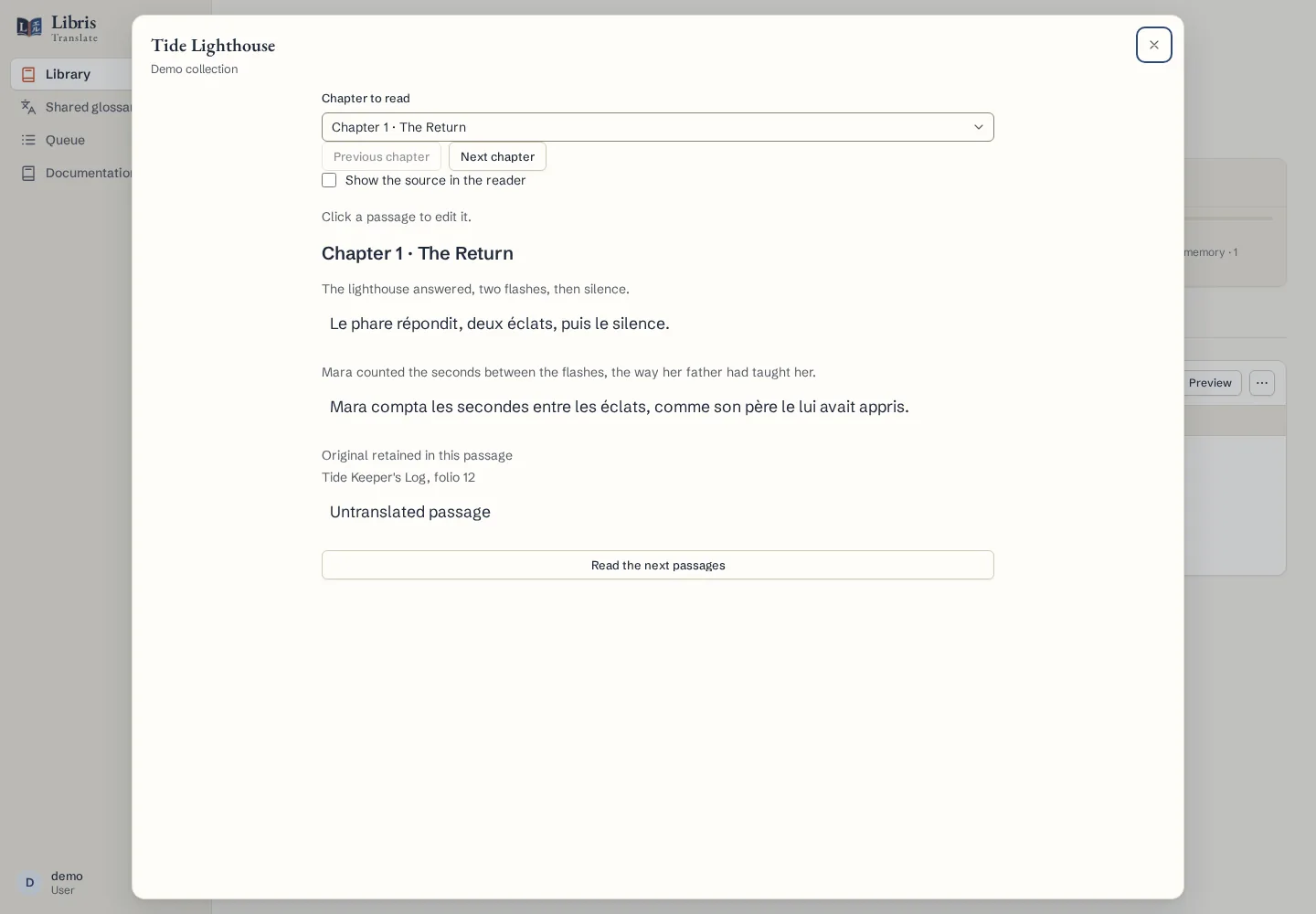
Steps
- In the book’s header, click “Read and edit”. Choose the chapter under “Chapter to read”, or move with “Previous chapter” and “Next chapter”.
- The reader loads the chapter 100 passages at a time. “Read the next passages” adds the following ones below what you have already read.
- Tick “Show the source in the reader” to see the original next to the translation. An untranslated passage, or one whose original was kept, says so.
- Click a passage to edit it. Each paragraph has its own field; keep the ⟦…⟧ codes, which carry the book’s formatting. “Save the correction” goes through the same history and the same protection of human corrections as the Translation tab.
- If a job or another person changed the passage in the meantime, the save is refused and your draft stays on screen next to the “Current passage version”. “Save my draft over this version” keeps yours.
What to know
A member invited as a Reader can read here but sees no edit control. While a correction is unsaved, changing chapter, showing the source or leaving the reader asks for confirmation. If the paragraph structure of the passage has changed, copy your draft before reopening it.
Fictional example
Read chapter 12 of a fictional webnovel, correct one sentence, then open the same passage in the Translation tab: its history shows one correction, yours.