
Libris Translate 0.28.0 · User guide
Category: Translate and review
Edit and validate passages
Source and translation side by side, with your corrections protected.
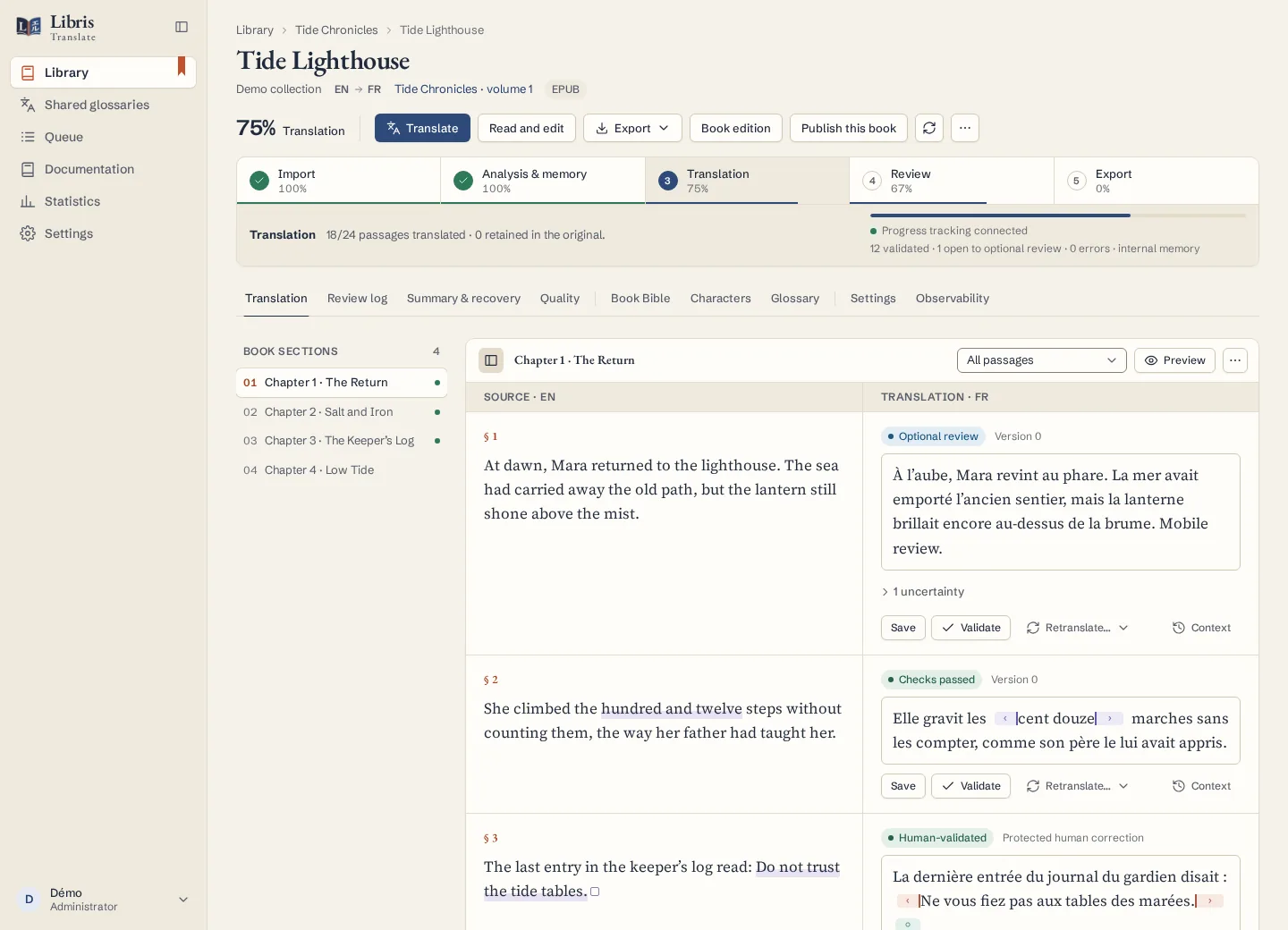
On video
What the video shows
- The French text on the left, the English translation on the right, passage by passage, with the state of each passage.
- The pointer stops on the Validate button of a passage.
Steps
- Open the Translation tab and pick a chapter in the book’s sections. “Filter passages” narrows the list to Optional review, Errors, Uncertainties, Provider refusals or Source retained.
- Correct the translation and click “Save”: the passage becomes a protected human correction that the autopilot will not rewrite. Click “Validate” on a passage you have read and want to keep as it is.
- “Retranslate…” offers “With more context” and “With an instruction…”. “Passage guidance…” keeps guidance for the next translation of this passage, and “Section instructions” apply to every passage of the section.
- “Context / history / Ask AI” opens the passage inspector: the context actually sent to the model, the version history with “Restore as human correction”, the critique, and “Ask AI” to question the model about a sentence without changing the passage.
- “Preview” shows the chapter as rendered. “Download this chapter (.txt)” and “Download this chapter (.md)” give you a copy to proofread elsewhere.
What to know
If a new version of the passage arrives while you type, Libris Translate asks you to choose “Reload the server version” or “Keep my text” before saving. Leave the coloured ⟦…⟧ codes in place: they carry the book’s formatting, such as italics or links. A passage set to “Retain source for export” stays counted as untranslated and appears in the partial export. The preview uses simplified styling, with scripts and external resources turned off.
Fictional example
In a fictional chapter, replace a literal “lanterne” with “feu du phare”, save, then open the history to compare your correction with the model’s version.